Provider guides
Paddle: setup and operations
Use Paddle Billing overlay checkout with order prices, partial refunds and provider-managed subscriptions.
On this page
Provider workflow
Agovena uses Paddle Billing overlay checkout with an order-based inline price. The order total and currency are sent to Paddle as a non-catalog price. An Agovena product does not need a separate Paddle product or price mapping.
Each generated price sets Paddle's quantity limits to a minimum and maximum of 1. The overlay therefore cannot multiply the Agovena invoice quantity.
A regular order uses a one-time inline price. An automatic subscription with one subscribable order item receives an inline billing_cycle. Paddle then creates the subscription and owns recurring transactions. Core stores the Paddle subscription ID and synchronizes its lifecycle from provider events.
Payment methods
Paddle remains the provider-owned checkout, just like Stripe Checkout and Mollie Checkout. Agovena opens Paddle's one-page overlay with supported methods such as card, ideal, bancontact, paypal and the relevant local methods.
The initial list uses country metadata for obvious local methods. Before a selected method is used, Agovena calls Paddle's transaction preview with the order amount, currency and billing address. Paddle's available_payment_methods response is authoritative for country, currency, product and account availability. An unavailable method is rejected before the payable transaction is created.
For a selected method, Agovena binds the method to the server-created transaction and opens Paddle's overlay with allowedPaymentMethods. Paddle still owns the payment surface and the actual payment collection. The Enabled payment methods setting controls which individual options Agovena offers, while Paddle's transaction context remains authoritative.
Requirements
Agovena Core ^0.0.1. This extension declares no additional package dependency. A provider account and access to Paddle are separate from package installation.
The extension is production-ready for its supported Paddle Billing workflow, provided that the provider account, public HTTPS origin, webhook destination and credentials are configured for the same Paddle environment. Sandbox and live account approval remain operational prerequisites.
Set up the package
Create a Paddle API key
- Open the Paddle Dashboard and open Authentication.
- Confirm that Test mode is active while configuring the sandbox integration.
- On the API keys tab, choose New API key.
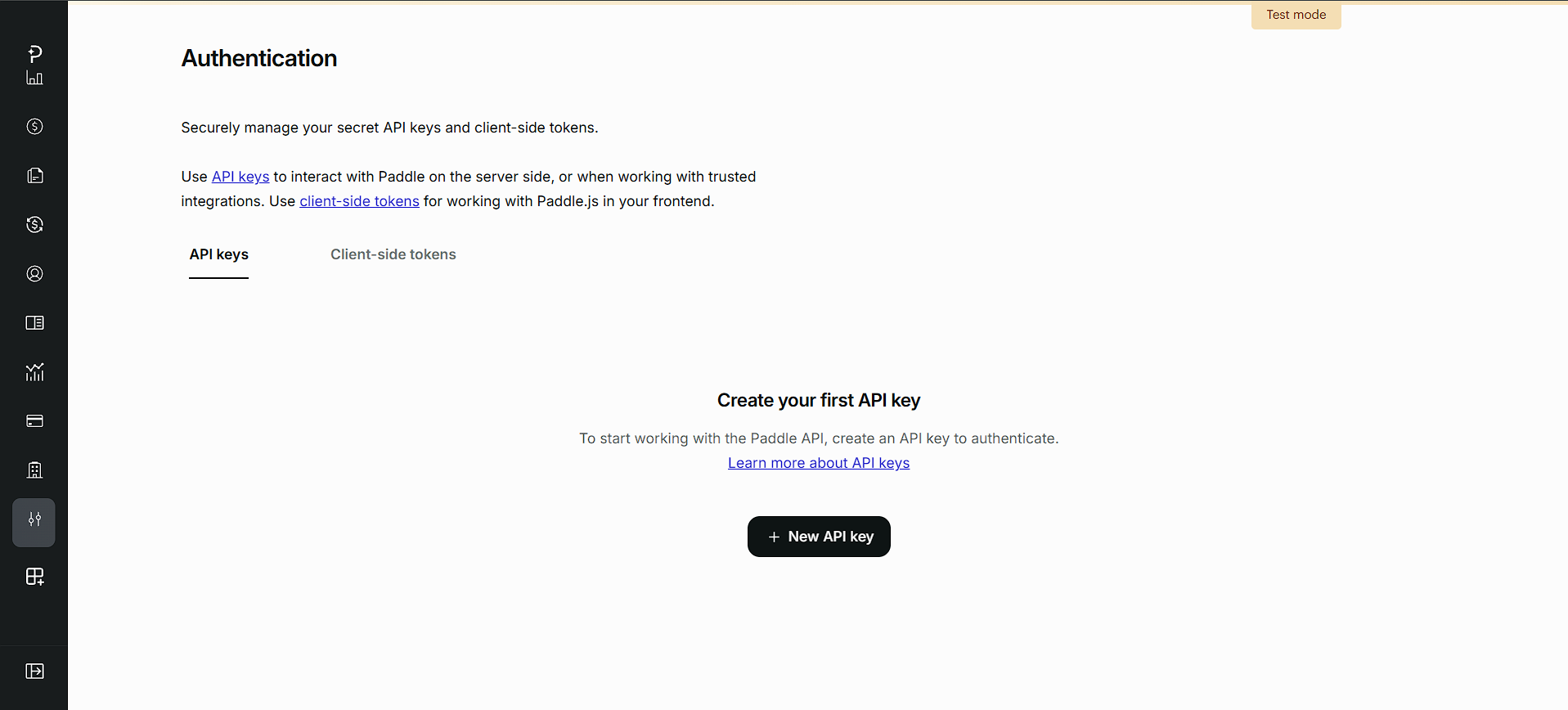
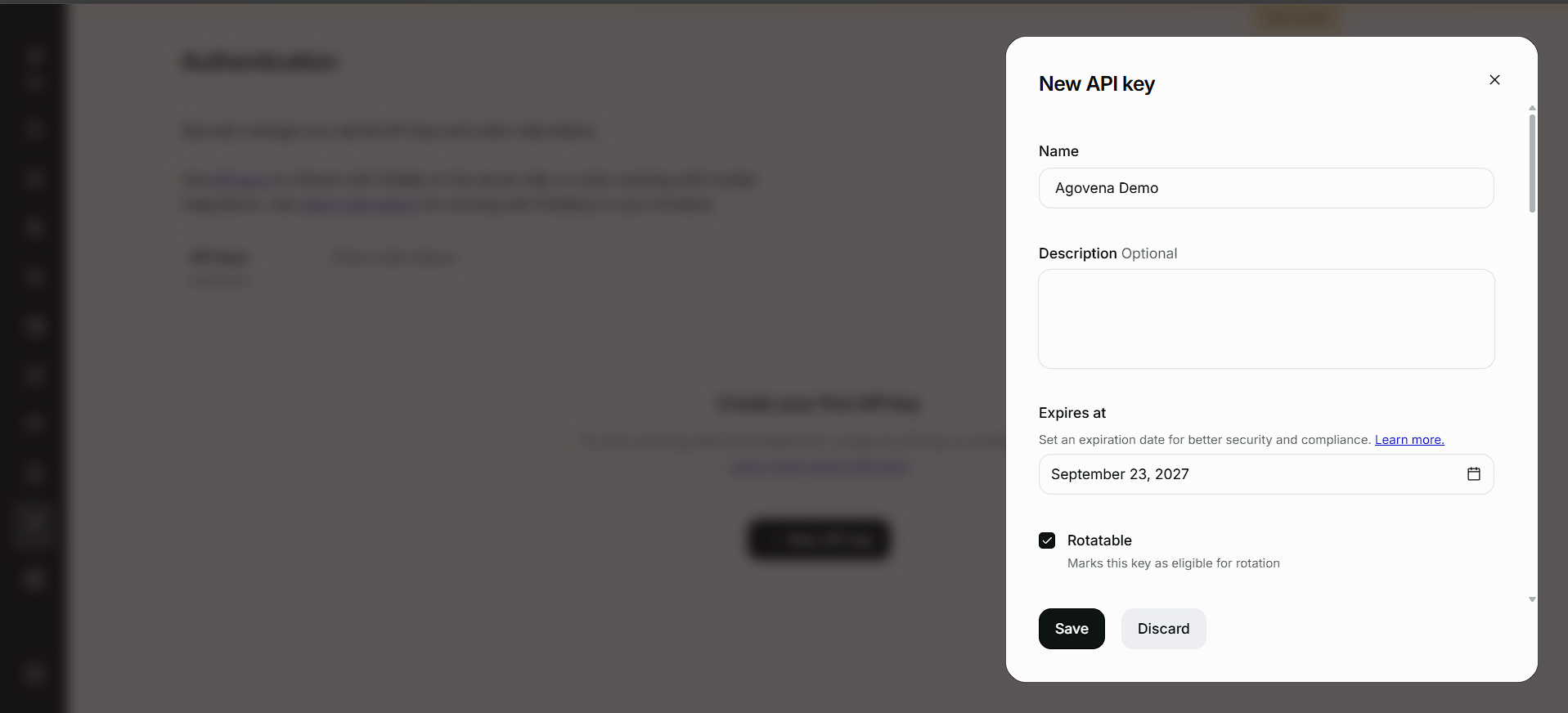
- Give the key a recognizable name, such as
Agovena testorAgovena production. - Set an expiry date and enable rotation when your account offers those options.
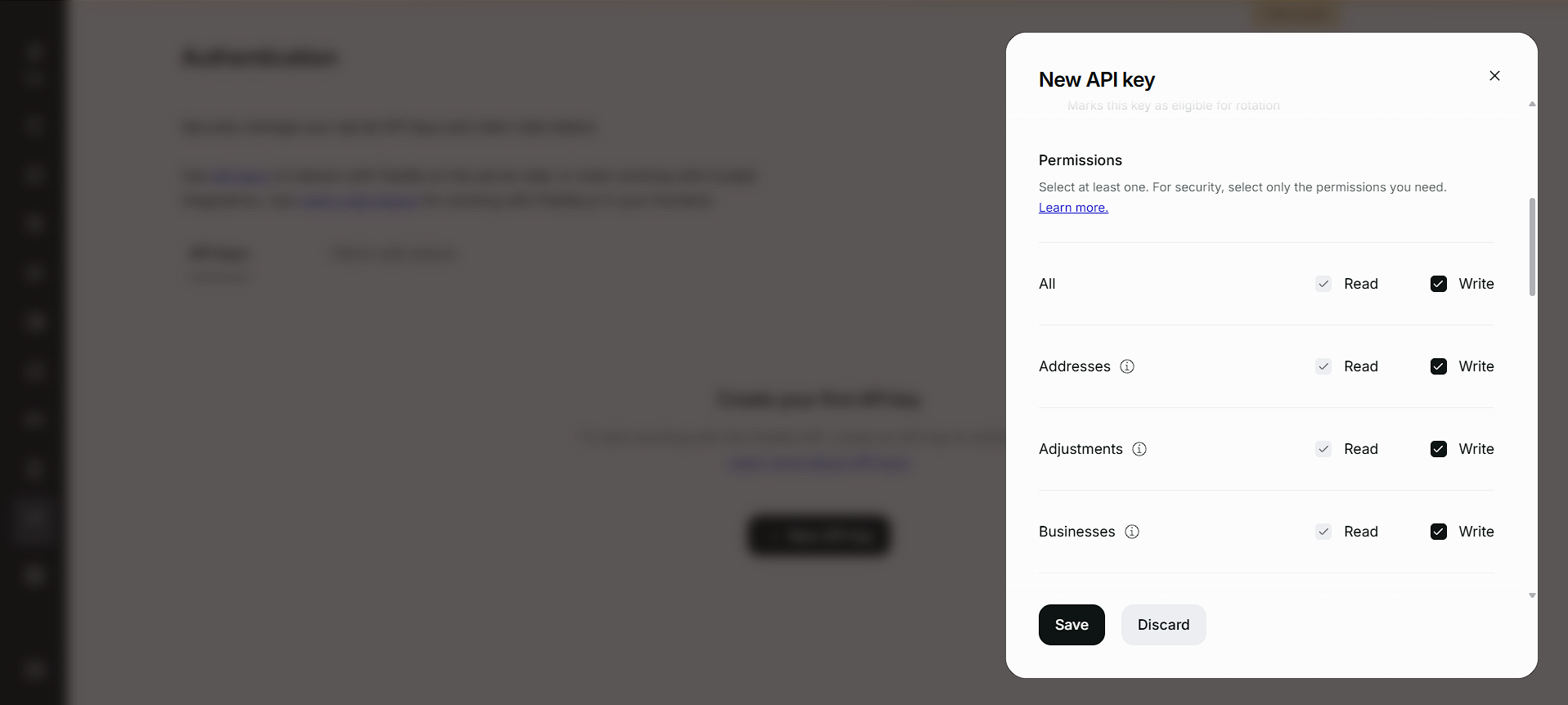
- Select only the permissions required by the Paddle operations you use. Subscription read/write permissions are required for subscription lifecycle operations, and the corresponding adjustment permissions are required for refunds.
- Copy the key directly into the protected Extension settings. Never publish it in screenshots, commits, issue trackers or chat.
Create a Paddle client-side token
The client-side token is separate from the server-side API key. It initializes Paddle.js on the public hosted-checkout launcher.
- Keep Test mode active for a Sandbox token, or switch to live mode for a live token.
- Open the Client-side tokens tab.
- Choose New Client-side token, give it a recognizable name and create it.
- Copy the token value immediately. Use the
test_token with Sandbox mode and thelive_token with live mode.
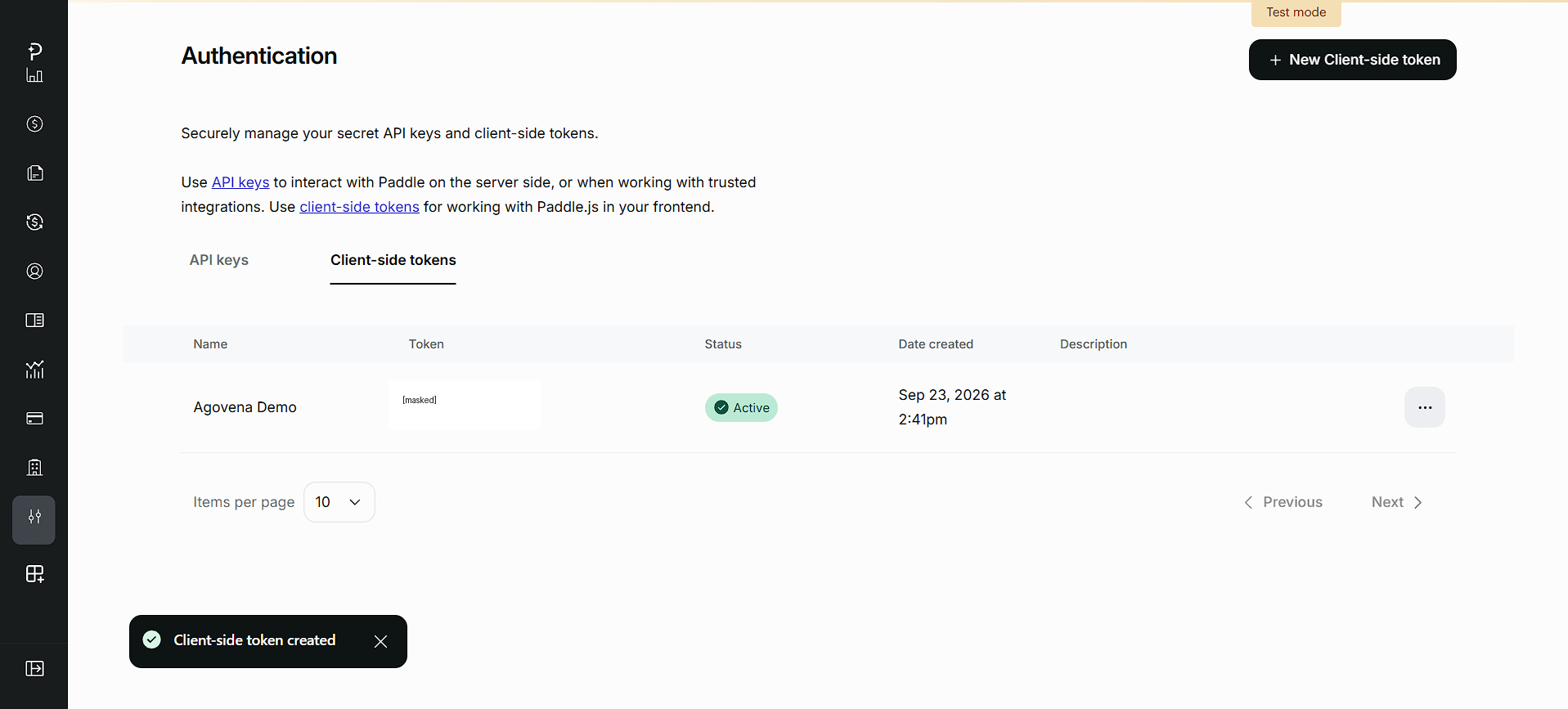
The client-side token is intended for Paddle.js and is not the server-side API key. Do not put it in the API key field. Never publish the complete value in screenshots, commits, issue trackers or chat.
Configure Paddle in Admin
- Open Admin > Extensions and enable Paddle.
- Enter the Paddle Billing API key in API key.
- Enter the Paddle.js client-side token in Client-side token. Use a
test_token in Sandbox mode and alive_token in live mode. - Enter the signing secret for the Paddle notification destination in Webhook secret.
- Leave Sandbox mode enabled while using Paddle sandbox data.
- After the connection is available, select the individual methods under Enabled payment methods. Paddle can still remove a method for a specific transaction, country, currency, product, account or device.
- Set the Paddle Default payment link to the public launcher URL described below.
- Save the settings and check the connection health message. Webhook processing is always enabled; there is no supported disabled-webhook mode.
There is no price_map field. Agovena creates inline prices from order data, so changing a product name, SKU or internal product ID does not require a separate Paddle mapping.
Refunds
Paddle uses the Adjustments API for refunds. Agovena supports:
- full refunds through a full adjustment;
- partial refunds through a partial adjustment on the Paddle transaction line item;
- amounts in the smallest currency unit, using the transaction currency;
- idempotency keys for repeatable refund requests.
A partial refund requires a valid Paddle transaction line-item ID. The adjustment is asynchronous: use the adjustment.updated webhook or transaction status reconciliation to process the final provider status. A successful API response is not by itself proof that the refund has been definitively approved. Rejected and reversed adjustments remain failed; unknown outcomes remain pending for reconciliation.
Subscriptions
An automatic Agovena subscription follows this flow:
- The order contains one subscribable item.
- Checkout uses
renewal_mode=automatic. - Agovena sends an inline Paddle price with
billing_cycle. - Paddle creates an automatically collected subscription and bills future periods itself.
- Agovena stores the Paddle subscription ID when the transaction or webhook provides it.
subscription.created,subscription.updated,subscription.canceledand subscription-related transaction events synchronize the Core subscription projection.
The Core scheduler does not create a second renewal order or attempt a Stripe/Mollie-style off-session charge for a provider-managed Paddle subscription. Paddle is the billing source of truth for that subscription.
End-of-period and immediate cancellation use the official Paddle subscription endpoints. Resuming a local end-of-period cancellation clears Paddle's scheduled_change; it does not call Paddle's resume endpoint for paused subscriptions.
Mixed orders with multiple products are not silently sent as one recurring Paddle price. Use one clear subscribable order item for Paddle automatic subscriptions.
Webhook requirements
Register this public HTTPS endpoint as a Paddle webhook destination:
POST https://shop.example.com/webhooks/payments/paddle
Paddle cannot deliver directly to localhost or 127.0.0.1. Choose Webhook as the notification type and copy the signing secret for this exact destination into Webhook secret. Agovena does not support disabling webhook processing, because reliable payment, refund and subscription lifecycle handling depends on it.
The webhook is required for a production-ready checkout. Agovena may use GET /transactions/{transaction_id} as an initial status check, but webhook processing is required for reliable:
- subscription creation, updates, cancellations and payment failures;
- future Paddle-managed renewal transactions;
- asynchronous refund adjustment status;
- replay and signature verification.
Polling a transaction is a useful initial-checkout fallback, but it does not replace subscription and refund lifecycle events.
Before adding the destination, approve the public checkout domain under Website approval in the Paddle Dashboard. Approve the exact production or sandbox hostname that launches Paddle Checkout. Domain approval is separate from the webhook destination, but both are required for a complete hosted-checkout setup.
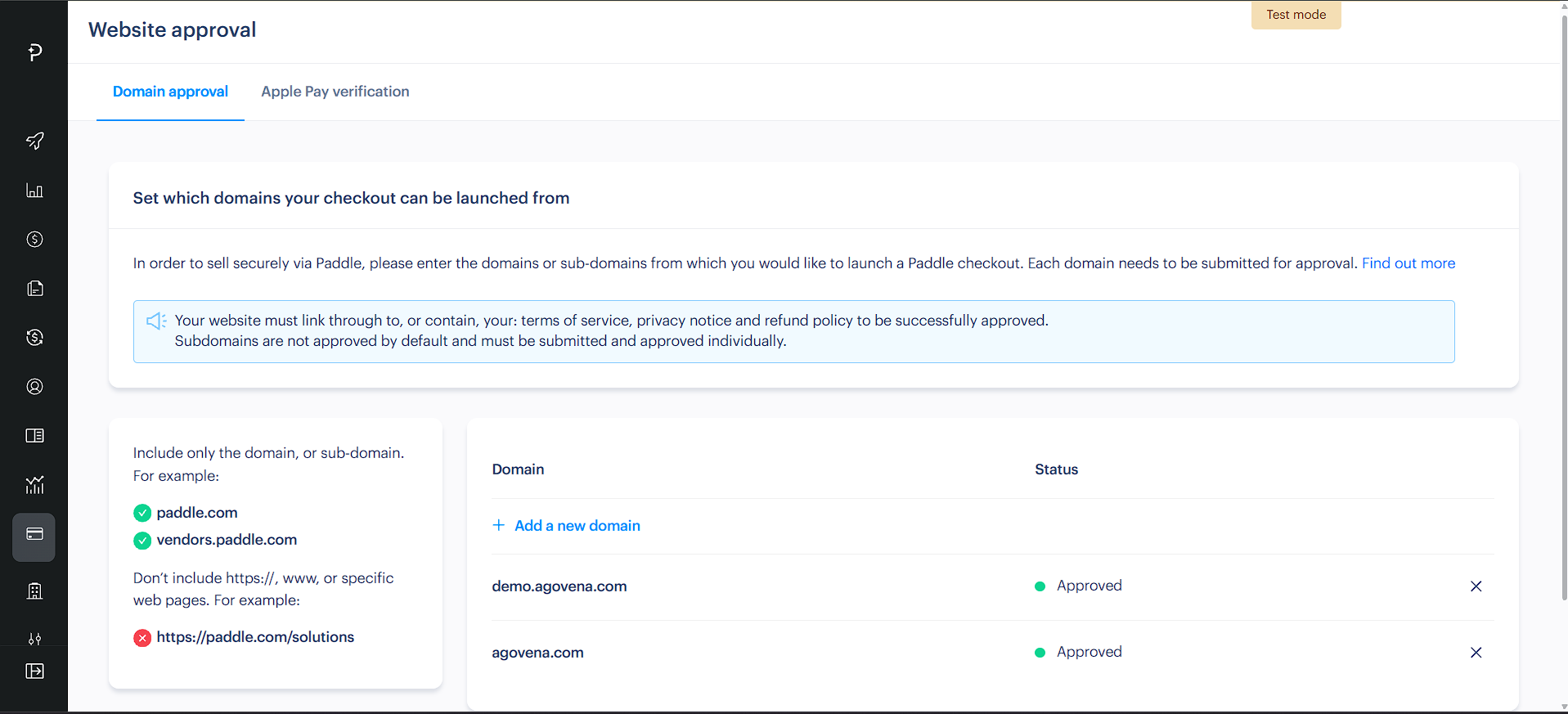
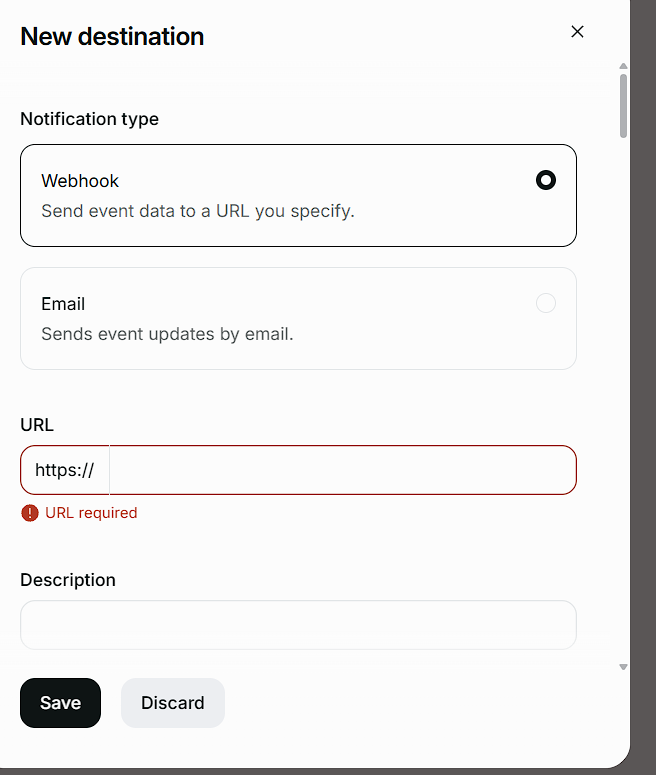
The adapter checks the Paddle-Signature header against the original body and compares paid transaction events with the order, payment, currency, total and line item.
Hosted checkout and local tunnels
Paddle adds _ptxn to the Default payment link returned by the transaction API. The Paddle extension now provides the Paddle.js launcher at:
https://demo.agovena.com/paddle/checkout
Set that exact URL in Paddle Sandbox > Checkout settings > Default payment link for the demo Sandbox account. The launcher loads Paddle.js and opens the transaction identified by _ptxn; do not use the Agovena cart route as the Paddle Default payment link.
The launcher uses Paddle's inline one-page checkout for fixed Agovena orders. It passes the selected transaction payment method to Paddle, disables discount and tax-ID additions, and sends successful, failed, payment-error, or closed checkouts to Agovena's payment-status page. Failed checkout events render a failed state instead of incorrectly showing pending. A retryable Paddle transaction remains provider-controlled and continues server-side reconciliation until it is paid or reaches a terminal status. Inline checkout does not expose the quantity controls that are available in Paddle's overlay checkout. The launcher follows the active storefront locale and light/dark theme, and the surrounding frame uses Agovena's surface, border, radius and responsive spacing tokens. Paddle's cross-origin iframe contents remain provider-owned and cannot be restyled with Agovena CSS. Paddle still decides whether a method such as Apple Pay is available on the customer's device and for the transaction.
For local development, ordinary localhost is not enough for a complete Paddle test. Your browser can open http://localhost:8000, but Paddle's servers cannot send webhooks to your computer. Run a public HTTPS tunnel, for example:
cloudflared tunnel --url http://127.0.0.1:8000
# or
ngrok http 8000
Use the generated HTTPS origin for both the Default payment link (https://your-tunnel.example/paddle/checkout) and the webhook endpoint (https://your-tunnel.example/webhooks/payments/paddle). Set the application's public URL to that same origin. A localhost-only configuration is intentionally not accepted as production-ready because webhook processing cannot be verified.
Demo Sandbox checklist
For demo.agovena.com:
- Approve
demo.agovena.comunder Paddle Website approval. - Configure
https://demo.agovena.com/paddle/checkoutas the Sandbox Default payment link. - Configure
https://demo.agovena.com/webhooks/payments/paddleas the Paddle Webhook destination. - Use a Sandbox API key, a
test_client-side token and the Sandbox webhook secret together. - Run
php artisan agovena:verify-providers paddleon the demo deployment. - Test a one-time EUR order. For Bancontact, use a Belgian billing address and confirm that Bancontact is enabled by the Paddle Sandbox account.
Never mix Sandbox credentials with live mode or live credentials with Sandbox mode. Do not use live credentials or real payments while validating the demo flow.
Configuration contract
| Field | Type | Required | Secret | Default |
|---|---|---|---|---|
api_key |
string |
Yes | Yes | Empty |
client_token |
string |
Yes | No | Empty |
webhook_secret |
string |
Yes | Yes | Empty |
enabled_methods |
payment_methods |
No | No | All supported methods |
sandbox |
boolean |
Yes | No | true |
Store secret values only in protected settings, never in product descriptions, URLs or shared examples.