
Provider guides
Stripe: configuration and operations
Use Stripe Checkout for hosted payments, signed payment events, refunds and status synchronization in test and live mode.
On this page
Status and workflow
The Stripe extension is production-ready for the current Agovena contracts. It supports Stripe test mode and live mode, provider discovery of Checkout methods, country-aware filtering, signed webhooks, idempotent processing, status reconciliation, full and partial refunds, and supported off-session charges.
Agovena does not collect raw card details. Stripe Checkout remains the hosted payment surface. A return URL is only a user-facing signal. Only a verified Stripe webhook or provider status synchronization may confirm a payment as paid.
Requirements
- Agovena Core
^0.0.1. - A Stripe account with the required payment methods activated.
- For local tests: Stripe CLI and a local Agovena installation.
- For live use: a public HTTPS domain, an accurate server clock and a live Stripe webhook endpoint.
- The Core dependency set includes
stripe/stripe-php.
Production-ready means that the package code, contracts, failure handling and tests for the current integration surface are complete. A real live provider check remains an operational step that you perform with your own Stripe account.
Set up the package
Create a Stripe API key
- Open the Stripe Dashboard and go to Developers > API keys.
- For a straightforward server integration, use Create secret key under Standard keys. Agovena needs a server-side secret key and cannot use a publishable
pk_...key.
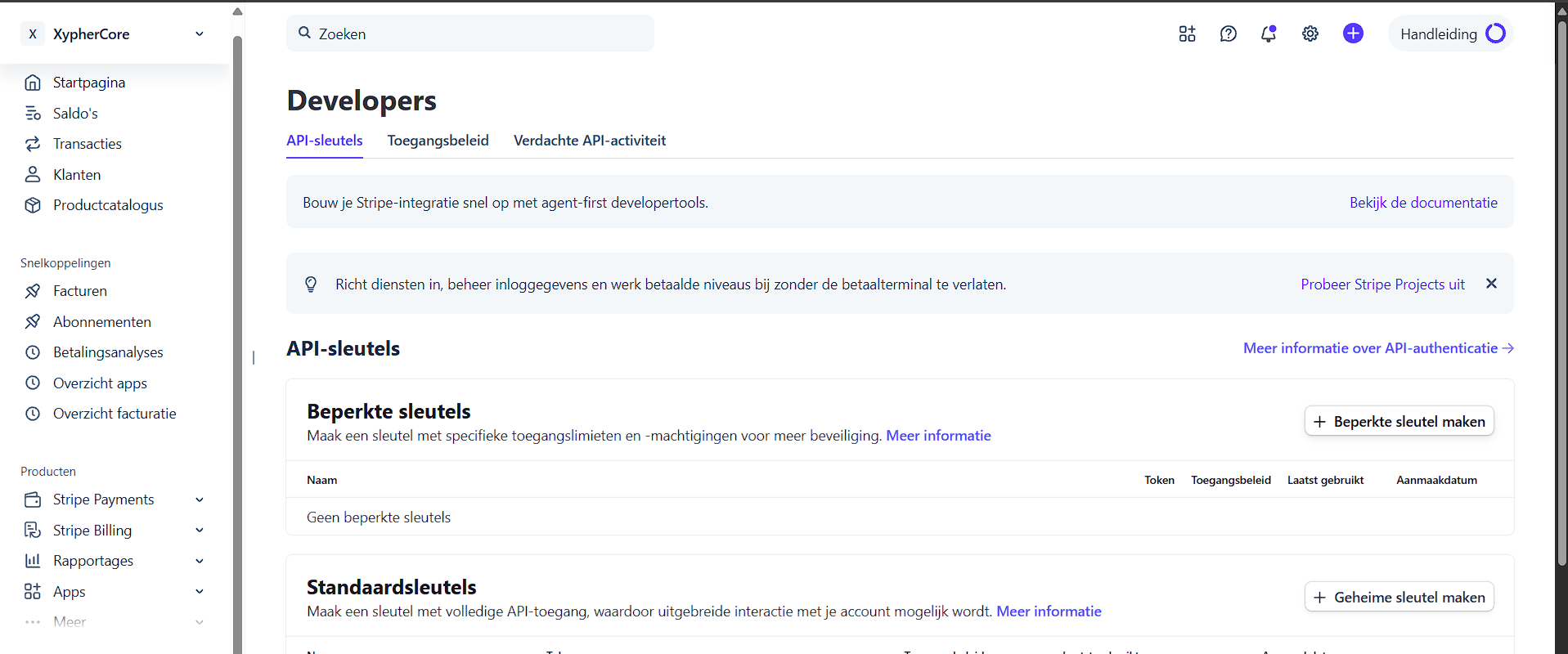
- Give the key a recognizable name, such as
Agovena testorAgovena production. - If your organization requires least privilege, choose Create restricted key and grant only the permissions required by your current Stripe integration. Stripe can show different permission lists per account or Dashboard version. Do not enable every permission blindly.
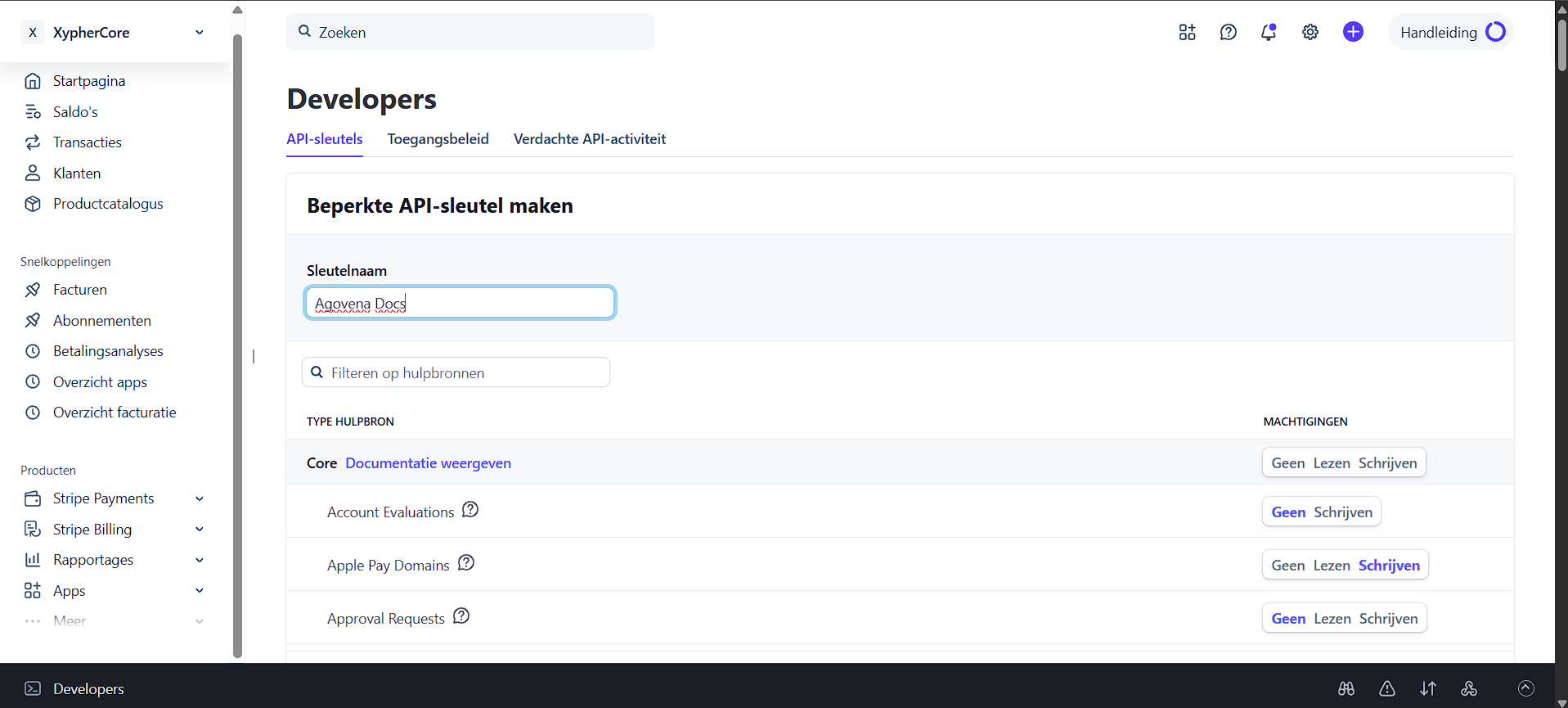
- Copy the secret key only into the protected Agovena Extension settings. Never publish it in screenshots, commits, issue trackers or chat.
- Use an
sk_test_...key while testing. Create a separatesk_live_...key for production and never use it with test events.
Configure Agovena
- Open Admin > Extensions and enable Stripe.
- Use an
sk_test_...key during the test phase. - Use a webhook signing secret that starts with
whsec_. - Store both values in the protected Extension settings. Agovena encrypts secret settings and does not redisplay stored values.
- Leave
enabled_methodsempty to use all methods available from Stripe, or select only the methods you want to offer. - Check connection health. The message identifies whether the configured key uses test mode or live mode.
Always pair a sk_test_... key with a test webhook secret and a sk_live_... key with the signing secret from the live Dashboard endpoint. Agovena rejects a verified webhook when its Stripe livemode value does not match the configured key mode.
Use real values only in the protected Admin Extension settings. Sensitive provider credentials are intentionally not read from generic environment overrides, so an environment variable cannot bypass encrypted stored settings. Never commit them, place them in screenshots, or paste them into issue trackers or chat.
Payment methods and country filtering
Agovena retrieves the active Payment Method Configuration from Stripe and caches discovery. An explicit Refresh payment methods action fetches provider information again. Checkout only uses methods reported by Stripe and allowed for the customer's billing country.
Examples of the shared country rules:
- iDEAL is offered only for the Netherlands.
- Bancontact is offered only for Belgium.
- BLIK and Przelewy24 are associated with Poland.
- EPS is associated with Austria.
- TWINT is associated with Switzerland.
The checkout filter is not a security boundary by itself. The server validates the same method again while placing the order. A manipulated request therefore cannot use a method that is not allowed for the billing country.
A selected method such as stripe:bancontact is passed to the Stripe Checkout Session as payment_method_types. When no specific method is selected, Agovena uses the active provider-discovered selection.
Webhook endpoint
Use this route:
POST https://shop.example.com/webhooks/payments/stripe
Always use the real HTTPS hostname in production. Stripe sends the raw request body and the Stripe-Signature header. Agovena verifies the signature with the official Stripe PHP SDK before processing the payload. The raw body must not be parsed and re-encoded before verification.
Configure at least these event types:
| Event | Use |
|---|---|
checkout.session.completed |
Checkout Session completed; Agovena checks payment_status afterwards. |
checkout.session.async_payment_succeeded |
An asynchronous payment method completed successfully. |
checkout.session.async_payment_failed |
An asynchronous payment method failed. |
checkout.session.expired |
An unpaid Checkout Session expired. |
payment_intent.succeeded |
PaymentIntent succeeded. |
payment_intent.payment_failed |
PaymentIntent failed. |
payment_intent.canceled |
PaymentIntent was canceled. |
charge.refunded |
The charge refund state changed. |
Only a refund response with Stripe status succeeded is marked completed locally. A pending response remains in reconciliation/manual review, while failed and canceled responses fail safely.
A verified event is stored idempotently by gateway and Stripe event ID. Repeated delivery cannot create a second payment, fulfillment action or refund. If an event does not yet resolve to a known Agovena payment attempt, it is deferred for reconciliation instead of being applied blindly.
After a network timeout, do not immediately charge again. Inspect the existing PaymentAttempt and use status synchronization or reconciliation. Uncertain refund outcomes remain pending until the provider status is checked.
Stripe CLI for local testing
Install the official CLI. With Node.js 18 or newer, npm can be used:
npm install -g @stripe/cli
Authenticate through the official browser flow:
stripe login
Start the local Agovena server on port 8000 and forward Stripe test events to the real Agovena route:
stripe listen --forward-to http://127.0.0.1:8000/webhooks/payments/stripe
The CLI then prints a temporary signing secret beginning with whsec_. Put that value temporarily in Admin > Extensions > Stripe > Webhook signing secret. Do not use the CLI secret for a Dashboard endpoint and never share it.
You can trigger provider events for signature and mapper smoke tests:
stripe trigger payment_intent.succeeded
stripe trigger payment_intent.payment_failed
These CLI triggers do not automatically contain the metadata of an existing Agovena order. They therefore prove forwarding, signature verification and event mapping only. Test a real order status by starting a test Checkout from Agovena and then checking the forwarded delivery and payment status.
Stop forwarding with Ctrl+C.
Configure the live webhook
For production, use an endpoint in Stripe Live mode. Stripe CLI is only for local test events and does not replace the live Dashboard endpoint.
1. Open Stripe Webhooks in Live mode
- Open the Stripe Dashboard and switch to Live mode.
- Go to Developers > Webhooks.
- Choose Add destination or Add endpoint. The exact button name may differ between Stripe Dashboard versions.
- Choose account events when Stripe asks for an event source.
2. Select the Agovena events
Select at least these events:
checkout.session.completedcheckout.session.async_payment_succeededcheckout.session.async_payment_failedcheckout.session.expiredpayment_intent.succeededpayment_intent.payment_failedpayment_intent.canceledcharge.refunded
The image shows the four events in the Checkout group. If you use Select all Checkout events, scroll to the Payment intents and Charges groups afterwards and select the remaining events separately.
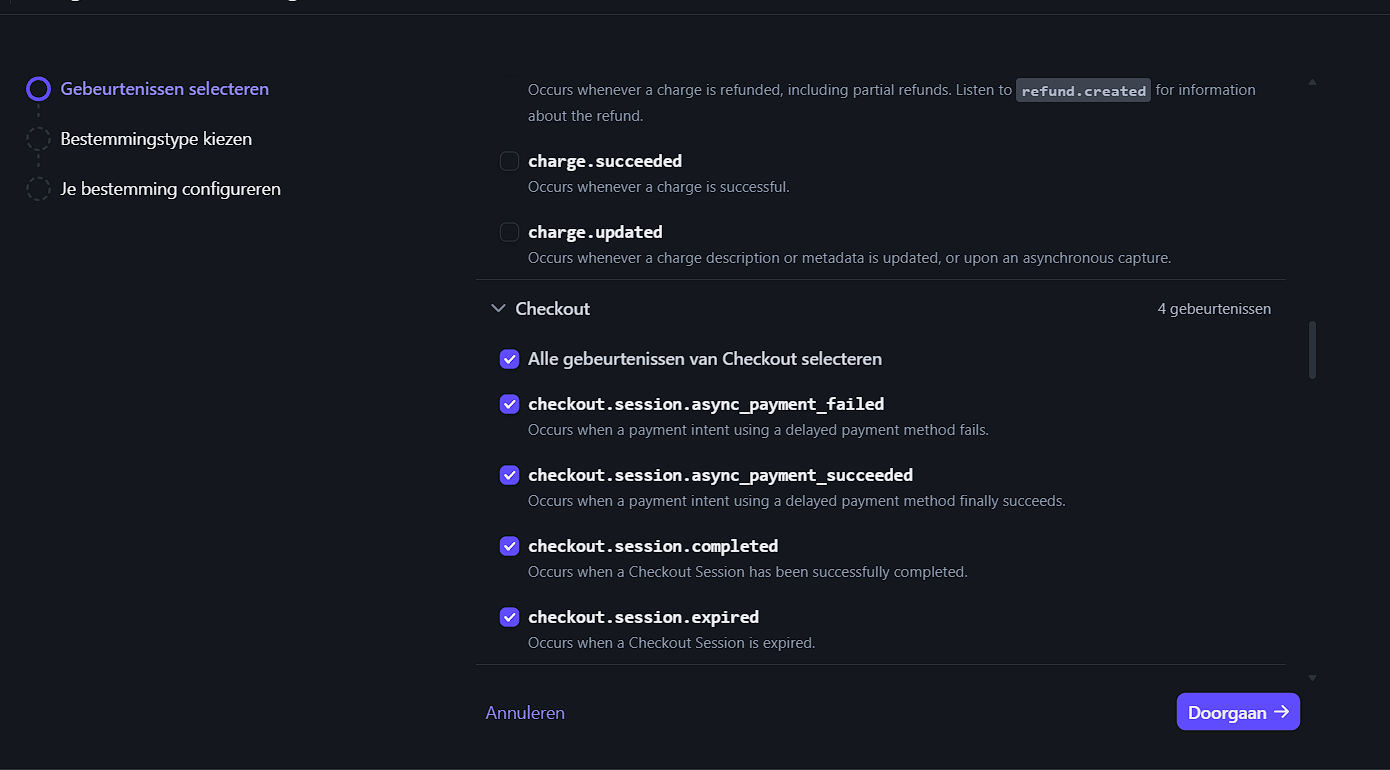
Click Continue.
3. Enter the production endpoint
Give the destination a recognizable name, such as Agovena payments, and use your real public HTTPS hostname:
https://shop.example.com/webhooks/payments/stripe
Replace shop.example.com with your domain. Do not use localhost, an internal IP address or the local Stripe CLI route in production.
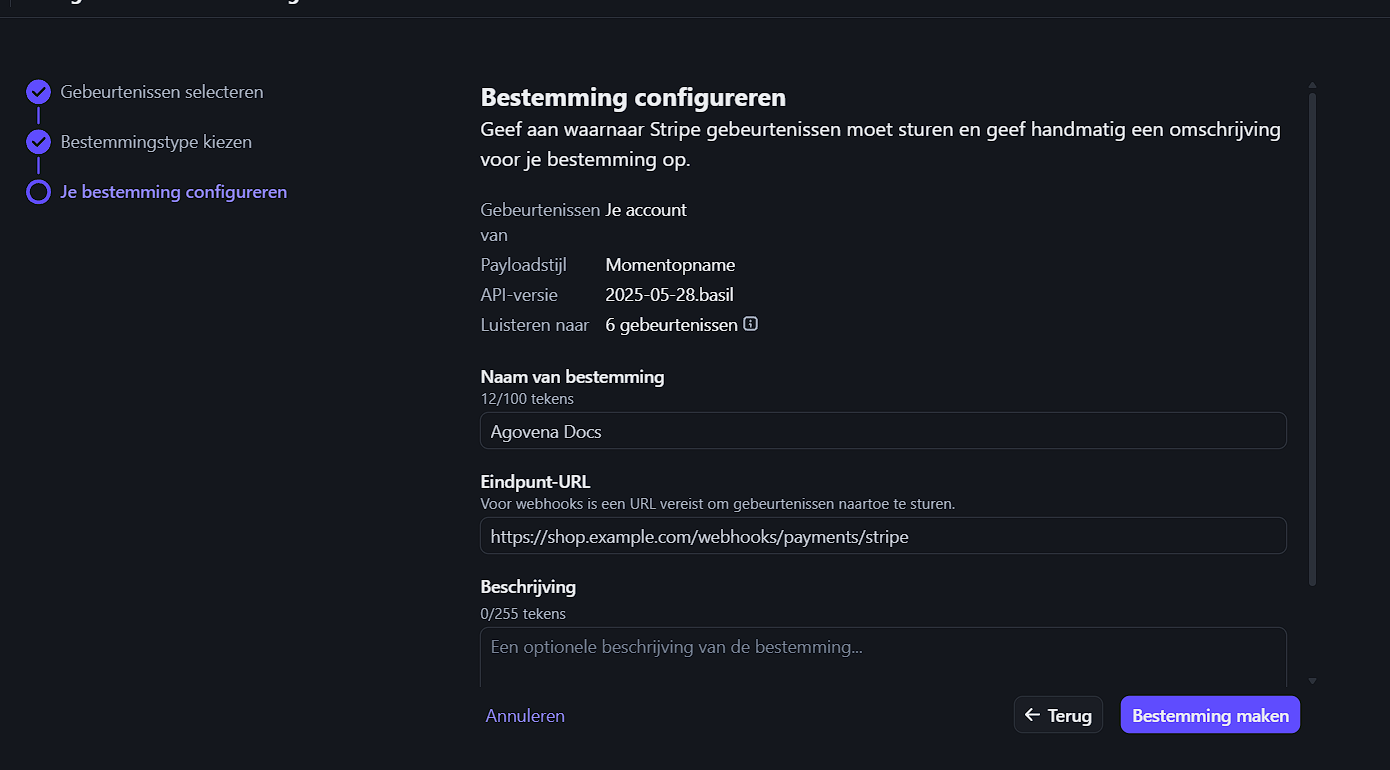
Click Create destination or the equivalent button to create the endpoint.
4. Copy the live signing secret
Open the details for exactly this live endpoint and choose Reveal signing secret. Copy the value beginning with whsec_.
- Use the secret from this live Dashboard endpoint, not a test endpoint secret.
- Stripe CLI shows a different temporary secret for local forwarding.
- Never put a signing secret in a screenshot, commit, issue or chat message.
5. Enter the values in Agovena
- Open Admin > Extensions > Stripe.
- Enter the live
sk_live_...API key under Secret key. - Enter the live
whsec_...signing secret under Webhook signing secret. - Click Save and check connection health.
- Use Refresh payment methods after changing payment methods in Stripe.
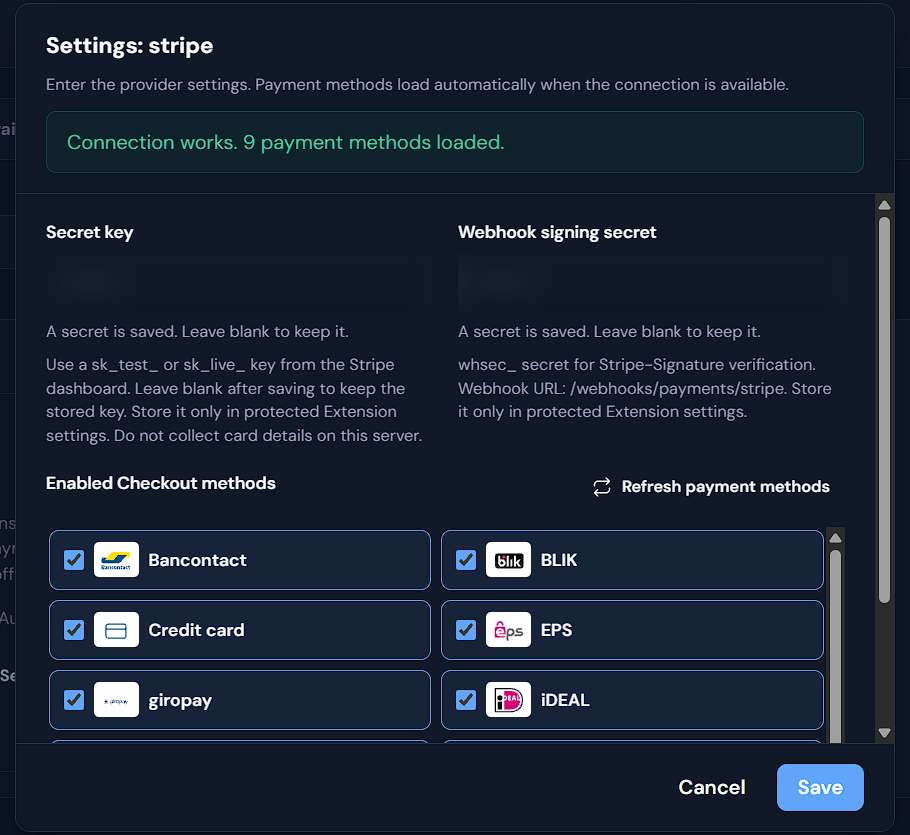
Leave the fields blank after saving when Agovena says that a secret is already stored. The existing secret is kept. The image shows masked fields and is not an example where real secrets may be visible.
6. Check webhook delivery
Open the endpoint you created in Stripe and check Events or Deliveries. A successful delivery returns HTTP 2xx. When a delivery fails, check these items first:
- public HTTPS and valid TLS;
- the exact
/webhooks/payments/striperoute; - a live
sk_live_...key paired with the live signing secret; - server time and queue processing;
- Agovena and web-server logs without secrets or complete sensitive payloads.
A test endpoint and live endpoint have different secrets. Use Stripe CLI forwarding for local test events, not as a replacement for the live Dashboard endpoint.
Schedule API-key and webhook-secret rotation during a controlled maintenance window. Agovena supports one active webhook secret per configuration. Coordinate the change in Stripe and Agovena, then verify another delivery. If a secret may have leaked, rotate it immediately in Stripe and replace it in Agovena without sharing the old value.
Operational checks before launch
Verify in test mode:
- successful Checkout and webhook confirmation;
- abandoned Checkout without a paid order;
- failed PaymentIntent;
- duplicate webhook delivery;
- full and partial refund;
- status synchronization after a simulated transport timeout;
- country filtering, for example no iDEAL for a Belgian billing address;
- off-session renewal only with a supported stored authorization.
Before live use, also verify:
- public HTTPS and valid TLS configuration;
- server time synchronized with NTP;
- queue and scheduler according to your deployment model;
- logs without API keys, webhook secrets, card details or complete sensitive payloads;
- a controlled live webhook delivery in Stripe;
- an agreed reconciliation and refund procedure.
Configuration contract
| Field | Type | Required | Secret | Default |
|---|---|---|---|---|
secret_key |
string |
Yes | Yes | Empty |
webhook_secret |
string |
Yes | Yes | Empty |
enabled_methods |
payment_methods |
No | No | All provider methods |
Sources: